It’s Time To Clear The Cache
Do you find that websites, browsers and images load slowly or don’t load at all? If so, then maybe it’s time to clear your cache!
So what is cache and how can I clear it? In this blog, we’ll walk you through the steps of how to clear your cache and make sure everything is up to speed. So, let’s get started.
First Things First: What is “Cache”?
Cache is responsible for temporarily storing data that helps websites, apps and browsers load faster. Every time you load a website your browser, whether its Google Chrome, Firefox or Internet Explorer, must download the necessary files, imagery and code needed to display the content of the website correctly onto your hard drive.
By caching this data it means that the browser no longer needs to re-download this and instead accesses it from the hard drive, which means faster loading times.
However, the more data collected overtime the more storage space is used up.
Why Do I Need To Clear My Cache?
Regularly clearing your cache offers the following benefits:
-
More free space on your hard drive
-
Deletion of malicious malware that may have been stored in the cache without you knowing
-
Less chance that your cache is corrupted as you are less likely to see a 404 or 502 error when you load a website
Ok, So How Do I Clear My Cache?
There are a few different ways you can do this. The quickest way is to:
-
Use keyboard shortcut Ctrl + Shift + Del on Windows [Ali Note] You can also use Ctrl + F5 to refresh the cache and page [/Note]
-
Or Command + Shift + Delete on Mac
But if you don’t like using keyboard shortcuts, follow these steps for the browser you use:
Google Chrome
-
Click on the three dots from the top right corner and choose settings
-
Click on Advanced
-
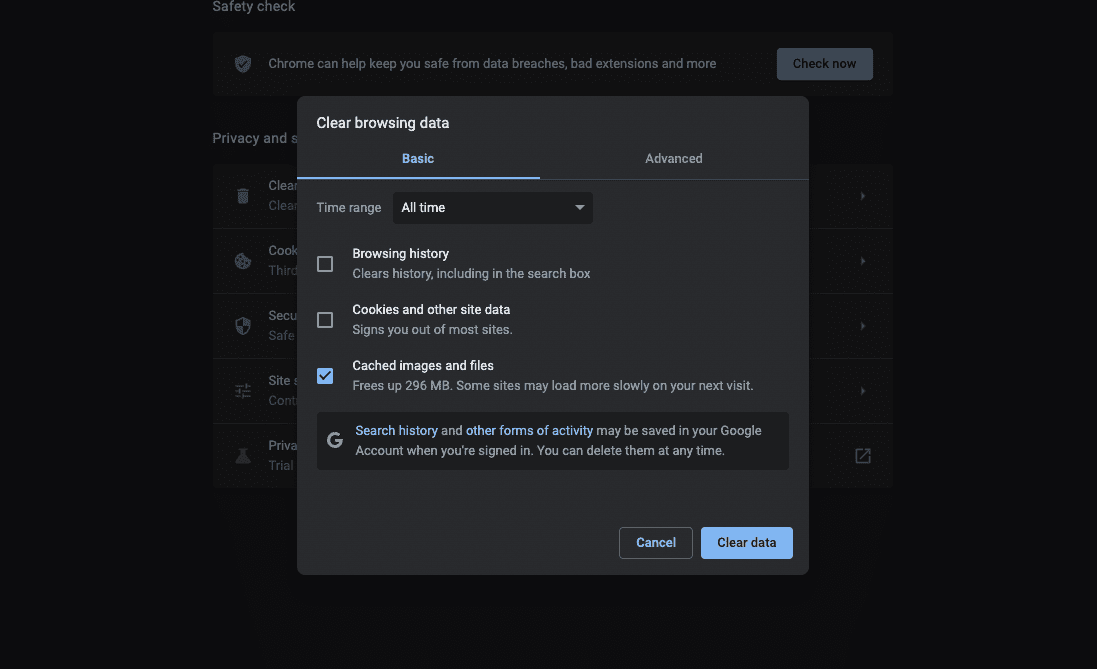
Click on Clear browsing data
-
Tick the box beside Cached images and files
-
From the Time range drop down menu, select the option you wish to clear your cache for
-
Finally click on Clear data
Google Chrome Mobile App
-
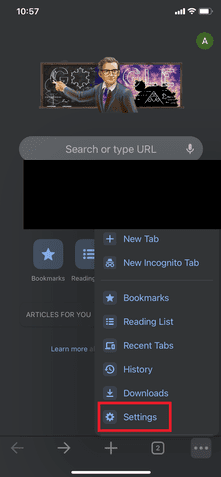
Tap on the three dots (top right for Android users and bottom right for iOS users)
-
Then Settings
-
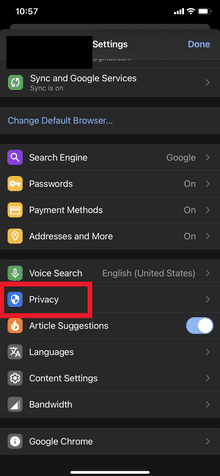
Then Privacy
-
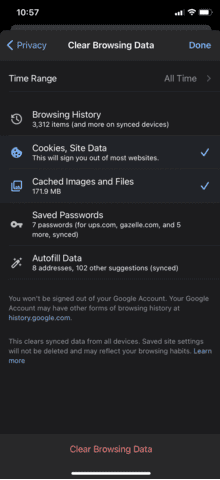
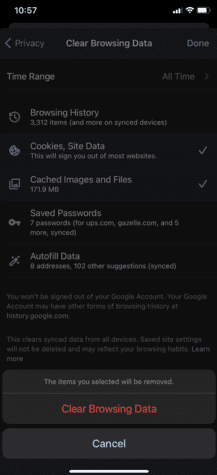
Then Clear browsing data
-
Tap on the box beside Cached images and files
-
Finally, tap on Clear data and then tap on Clear for Android users. For iOS users tap on Clear browsing data and then tap on Clear Browsing Data in the notification window
The quickest way to do this on Google Chrome for iOS is:
-
Tap on the three dots on the bottom right
-
Then on History
-
Then on Clear Browsing data on the bottom left
-
Select your time range for clearing the cache from the drop down menu
-
Tap on Clear Browsing Data again in the notification window

Safari Mobile App
-
Tap on Settings which may be located under the Utilities app
-
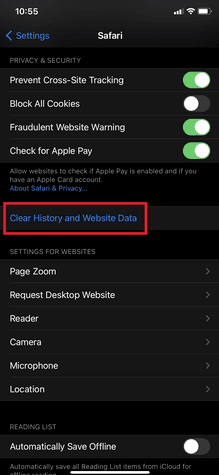
Scroll down until you find Safari and tap on it
-
Scroll down until you find Clear History and Website Data
-
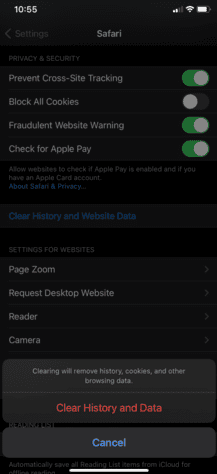
From the notification window that pops up tap on Clear History and Website Data
Firefox
-
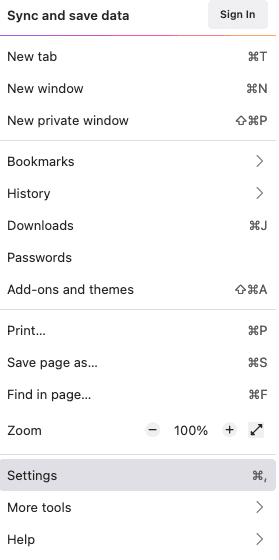
Click on the three horizontal lines in the top right corner of the browser
-
Click on Settings
-
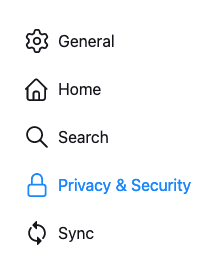
Click on Privacy & Security from the left hand side
-
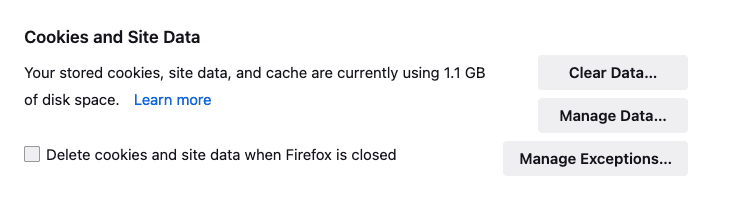
Scroll down until you see Cookies and Site Data
-
Tap on on Clear data (you can also click on Manage data and delete the data there)
-
Ensure both boxes are ticked beside Cookies and Site Data and Cached Web Content
-
Click on Clear
Internet Explorer
-
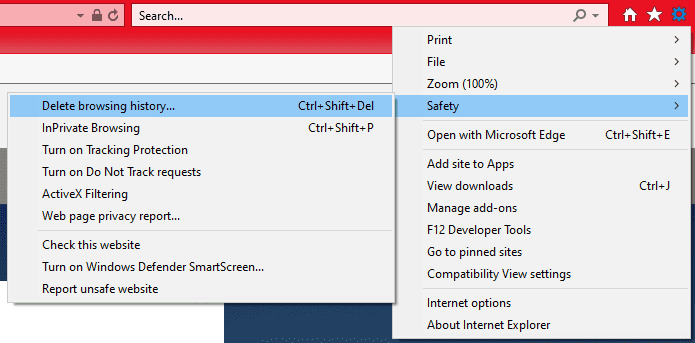
Click on the cog icon in the top right corner
-
From the fly-out menu Under Safety Click on Delete browsing history
-
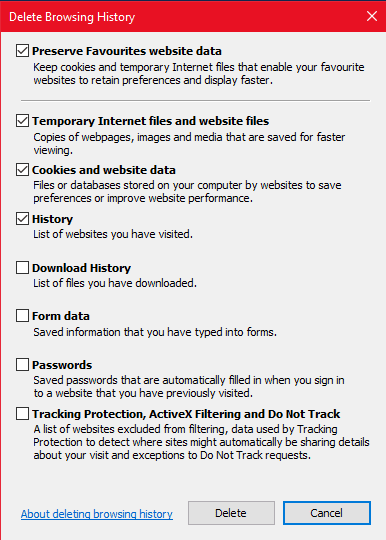
In the dialogue box that appears ensure you tick Temporary Internet files and website files
-
Click on Delete
Mac Desktop
-
Click on History from the top menu across from the little black apple icon
-
Then
-
Select the time range that you wish to clear your cache from
-
Ensure that ticks are against Browsing & download history, Active logins, Form & search history, Cookies and Cache. You can also choose to tick the box beside Offline website data (data files that are stored by a website on your computer usually for tracking in relation to marketing purposes that allows you to use it even when not connected to the internet)
Microsoft Edge
-
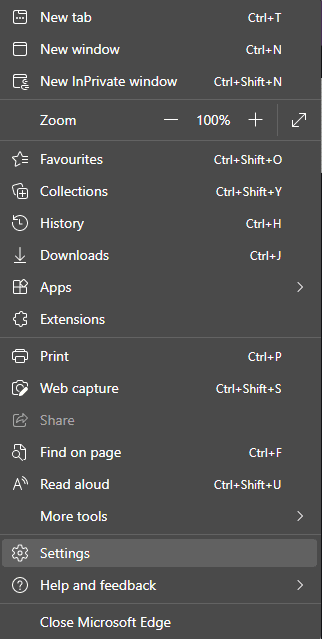
Click on the three horizontal dots on the top right corner
-
Click on Settings from the drop down menu
-
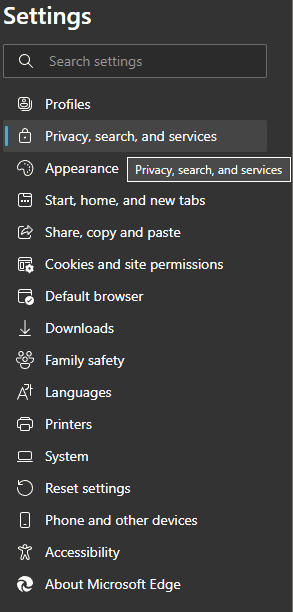
Click on Privacy and Services from the menu on the left
-
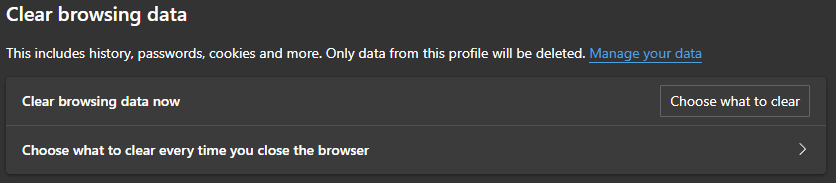
Click on Choose What to Clear
-
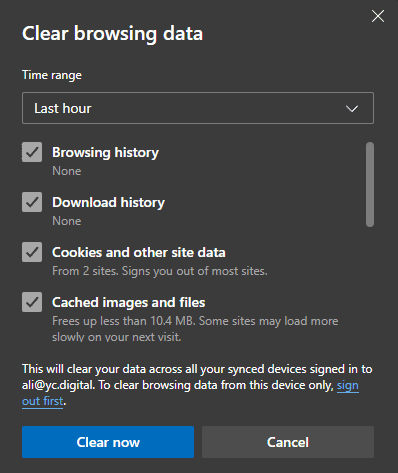
Tick all of the boxes that you wish to clear from your cache
-
Click on Clear Now
Microsoft Edge Mobile App
-
Tap on the three horizontal dots at the bottom
-
Tap on Settings
-
Tap on Privacy and Security under Advanced
-
Tap on Clear browsing data
-
Ensure that you tick the option for Cached images and files for Android users and Cache