

How to upgrade from Universal Analytics to GA4
Google has recently announced that Universal Analytics (UA) will be retiring in June 2023 and that all existing properties should be moved over to Google Analytics 4 (GA4). Here at Yellow Cherry, we are diligently working away at making sure all of our clients are updated so, as part of their SEO package, they will always have a gap free report, full to the brim of data to review.
We took some time out to write a little guide on how to do this yourself, just so you aren’t caught out next year!
Upgrading
Let’s start with the easy bits. Most upgrades should just be a quick couple of clicks. We’ll leave the more difficult/tricky problems that might come up to later on in this article.
We’ll show you the process of upgrading by using our own property yellowcherry.uk as an example.
The quick simple upgrade
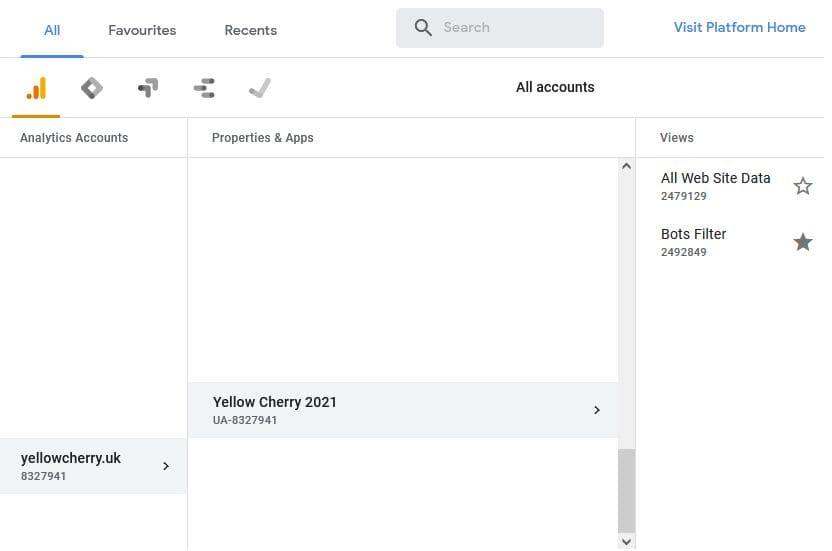
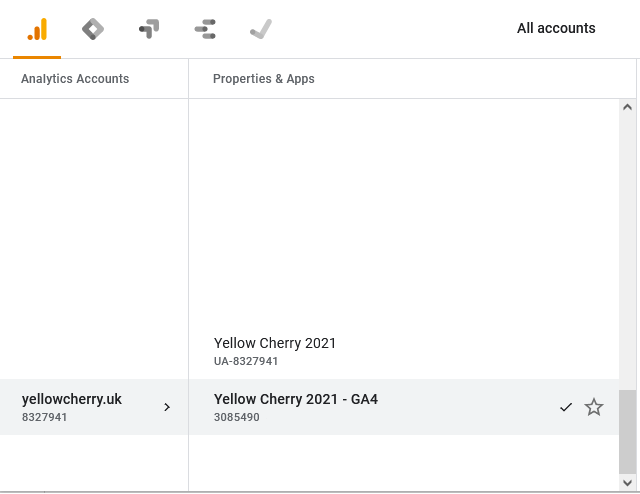
Log into your google analytics account and navigate to the property you want to upgrade by clicking on all accounts at the top left-hand side of the screen, choosing the Analytic Account, then the correct property under Properties & Apps.
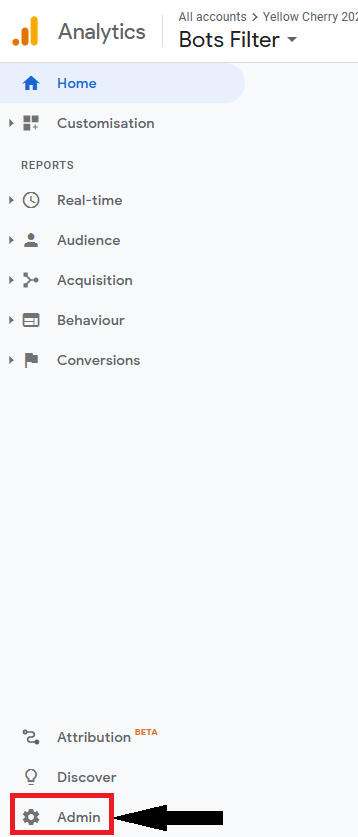
Once the property is selected, go down to “Admin”, that little cog icon on the bottom-left side of the screen.
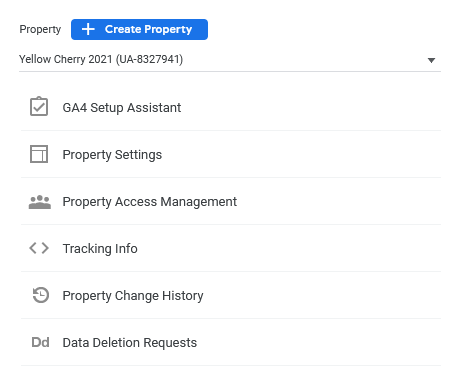
In the admin screen you will see 3 columns, click on “GA4 Setup Assistant” under your property account (middle column).
Then click on “Get Started” in the section titled “I want to create a new Google Analytics 4 Property”.
A window will popup, if the option is available then be sure to tick “Enable Data Collection Using Your Existing Tags”. This will link the new Tag to your existing tag without having to make any additional changes to your website. Click the Create Property button.
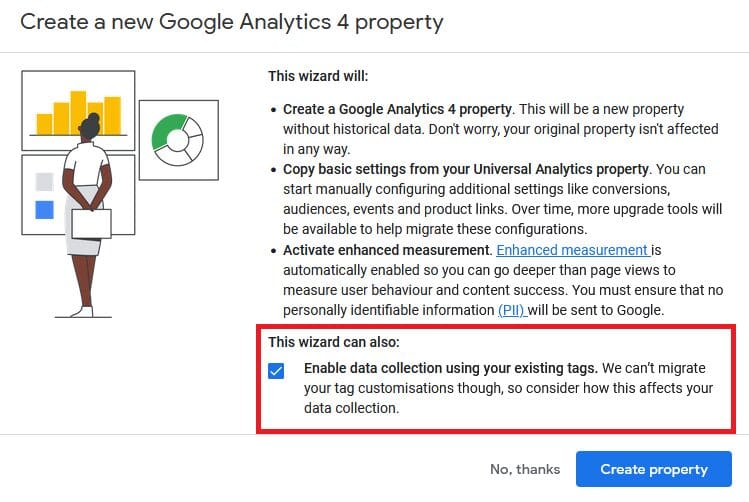
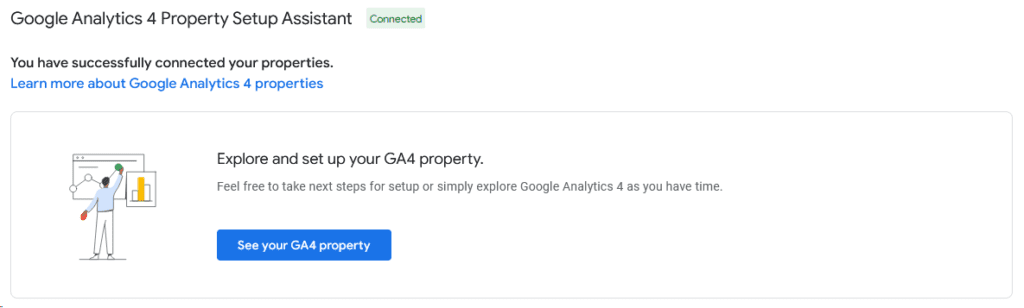
Now we should have a lovely new GA4 property, all hooked up to your previous UA property.
Your GA4 property will now show up in your list of Properties.
Good news! At this point, we are done, yay! Unfortunately, we can’t take the historical data from the old UA over to the new one. The best solution now is just to leave them both gathering data and once the switchover happens, you will have a wealth of data already on the GA4 instead of a new blank tag.
Trickier upgrades
The bad news is, the process might not be entirely painless. Lets go over some of the problems and how to overcome them.
Unable to connect to existing Universal Analytics Tag
If your site is using a particularly old tag, Google might not be able to use it for GA4 going forward.
In this event, you won’t be able to check the box that says “Enable Data Collection Using Your Existing Tags”. Instead you will need to create a new tag that is unconnected.
What we will do instead is add the new GA4 tag alongside your existing UA tag so they both gather data separately from each other. To do this, go to your new property in the admin menu and select “Data Streams”. This will show one pre-made data stream that we will put on our site.

Click on this one data stream which will take you through to a page detailing the stream information. This is where your implementation may differ from us. At Yellow Cherry, we primarily use the Global Site Tag option and insert that into the <head> of our websites. Your specific site may use a different setup and you should check before completing this stage.
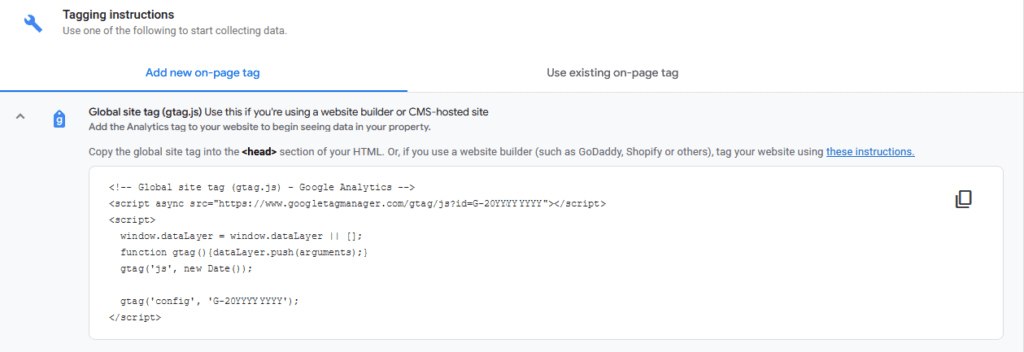
We will then take this code and put in the relevant part of a website. This will ensure it starts receiving data from the website in order to build up its data history.
Editor Permissions
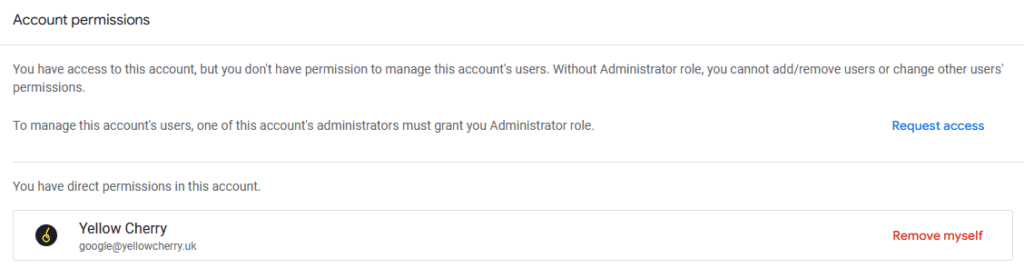
Depending on how your account was setup, you may receive this problem:
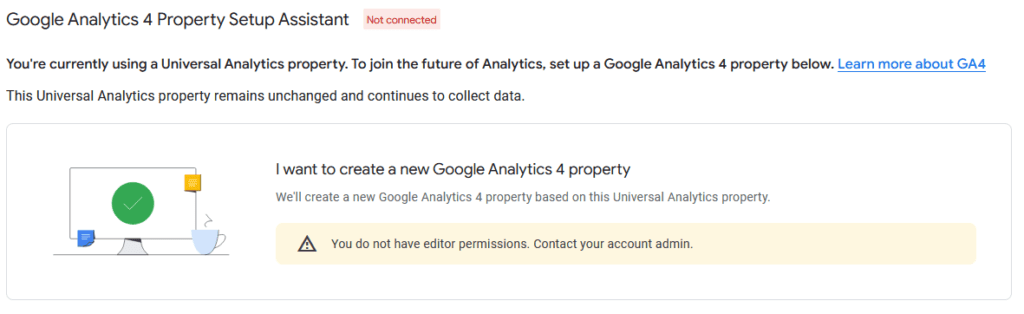
In this case, you will need to get in touch with the owner or an administrator of the Google account you are providing services for. You could do this by emailing them directly or by going to “Account Access Management” and clicking the blue “Request Access” button.
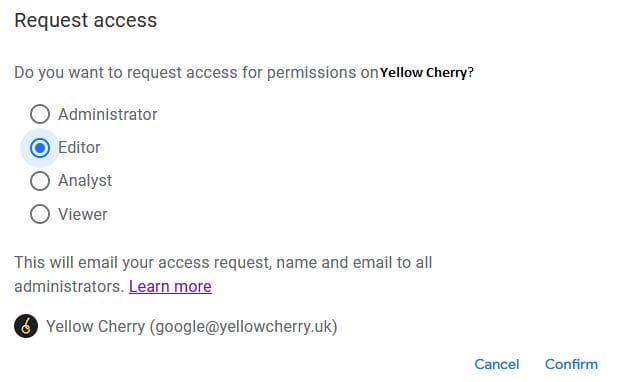
Then select either “Editor” or “Administrator” as the permission you need and click “Confirm”. This will set out an email to the administrators and owner saying you need elevated permissions. Hopefully, they will grant it to you and you’ll be able to keep working!
Conclusion
Hopefully this brief guide has been super clear and has helped you get set up. If you’re still unsure, or need help with any other settings, get in touch today and we’ll be more than happy to make sure your website and analytical data are ready for the future!